System Admin
After accessing the router admin panel, navigate to “System > System” from the top menu. We will go to the below System Properties page.
System Properties
Section titled “System Properties”Time Zone
Section titled “Time Zone”Under the General Settings tab, click the “Sync with browser” button to sync the time.
The router will automatically sync with the time server after being connected to the internet.
Choose the correct time zone, then click the “Save & Apply” button on the bottom right corner to save your new settings.
Host Name
Section titled “Host Name”You can customize the “Hostname.” It displays in the top-left corner.
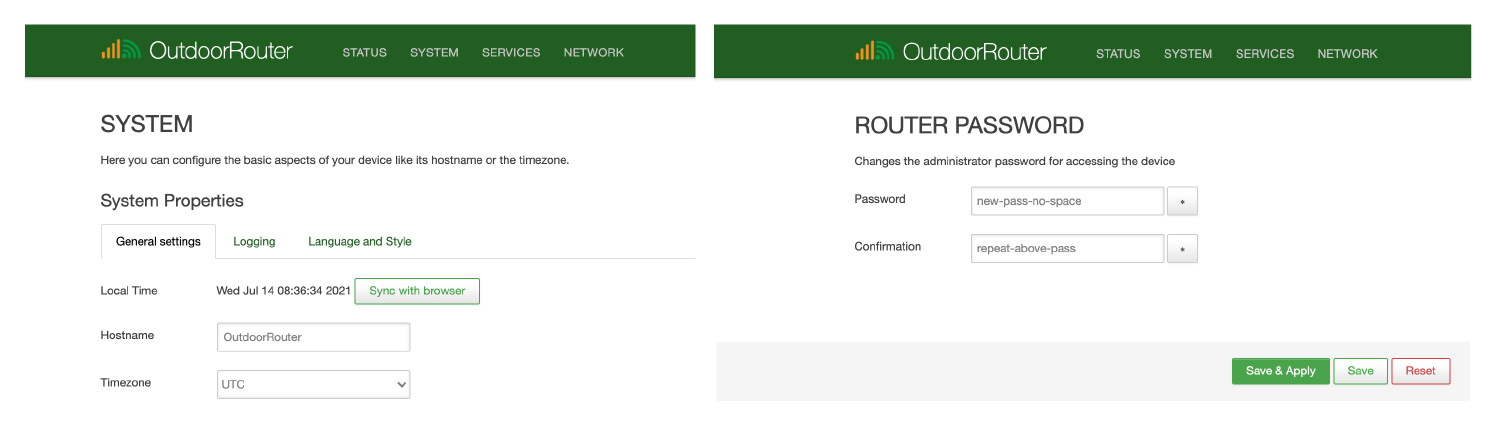
EZR34T-5G - System Properties and Router Password
Administration
Section titled “Administration”Go to System > Administration and input the new custom router password twice in the “Router Password” section, then click the Save & Apply button on the bottom right corner.
EZR34T - How to Set Router Password & WiFi Hotspots